How to Connect a Piano to Your Computer
- midi
- hardware
You have a piano. You have a computer. Somewhere between them is a cable, and between the cable and actually playing something is about four minutes of confusion.
Here’s the whole process:
What you need
- A piano with a USB port or a 5-pin MIDI out
- The right cable
- A compatible browser (if you want to play on Vitzik)
Almost every digital piano built in the last fifteen years is USB class-compliant, which means your computer should detect it, on Windows or Mac.
1. Find the right cable
Look at the port on the back of your piano. What do you see?
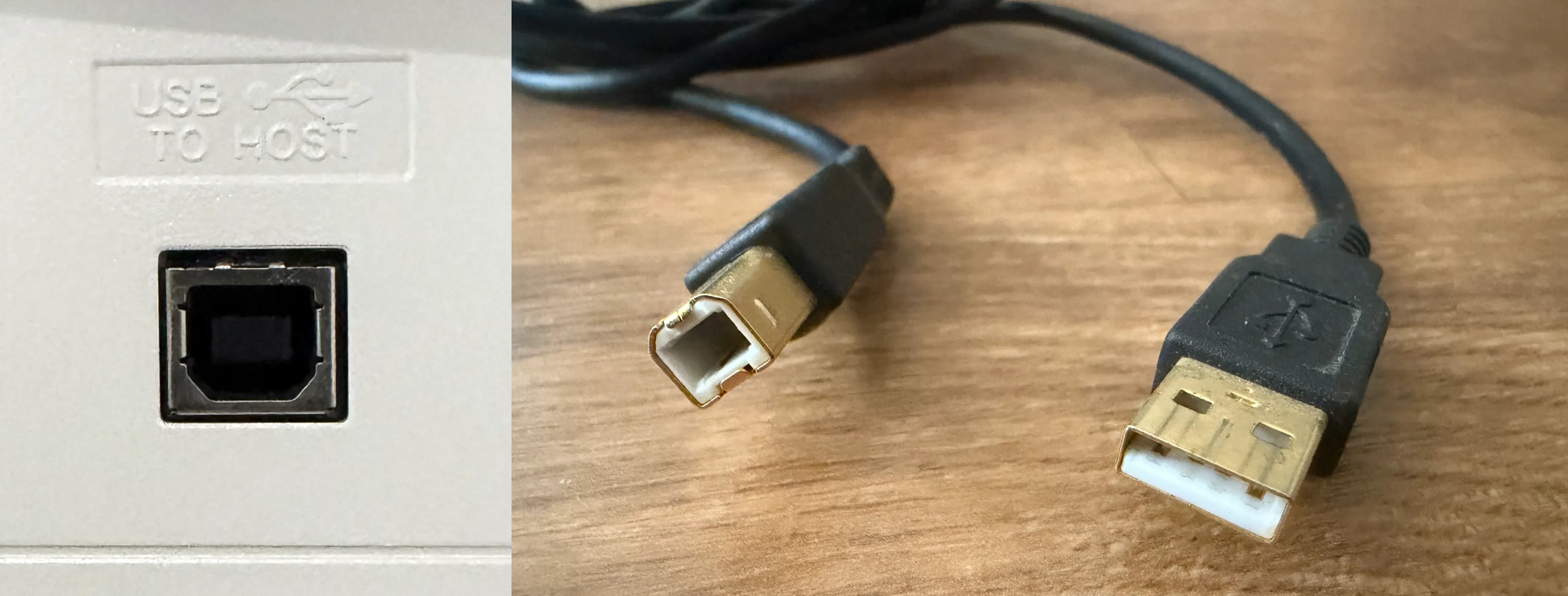
A square-ish port with bevelled corners. That’s USB-B. You need USB-B to USB-A, or USB-B to USB-C if your computer is more modern. Check the label above the socket. Many pianos have two USB ports: USB TO HOST goes to your computer, USB TO DEVICE is for memory sticks. Plugging into TO DEVICE won’t work for MIDI.
Five pins in a semicircle. That’s DIN MIDI. You need a USB MIDI interface: a small box with a cable at each end.
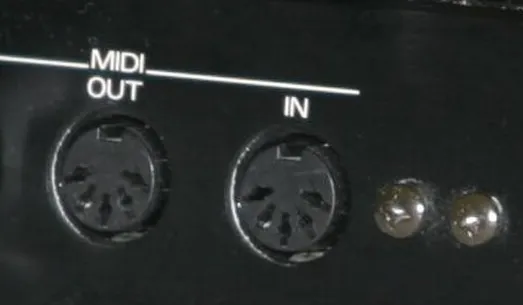
Photo by Pretzelpaws, source, CC BY-SA 3.0 — cropped from the original
2. Plug the cable
Plug it in. Turn it on. That’s the step.
If your piano draws its power over USB (quite rare), plug it directly into the computer rather than through a hub.
3. Use a browser that talks MIDI
This step is only if you are using a piano application on the internet (like Vitzik).
Browsers reach MIDI devices through the Web MIDI API. Chrome, Edge and Opera support it. Firefox supports it with an extra step. Safari does not support it at all.
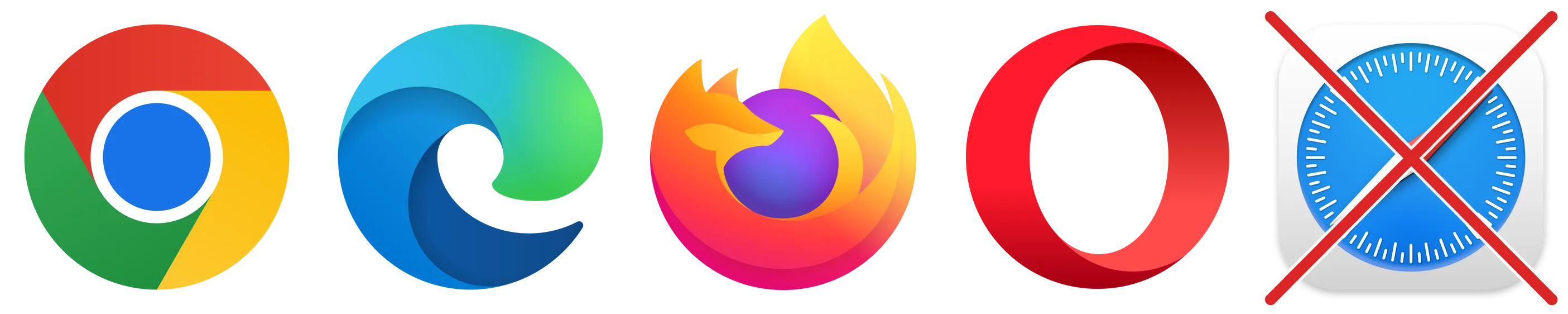
Safari has no mechanism at all for talking to a MIDI device, so a perfectly connected piano, will never appear. On a Mac that’s the browser you get by default, so install another browser before you conclude the piano is broken.
That also means every iPhone and iPad, since they’re all Safari underneath regardless of the icon you tapped. All the other features of Vitzik will still work, you’ll only be missing the real time piano feedback.
On Android, Chrome and Opera work. Firefox is the exception: it has no Web MIDI at all.
4. Allow the connection
The first time you open a page that wants MIDI, the browser asks permission:
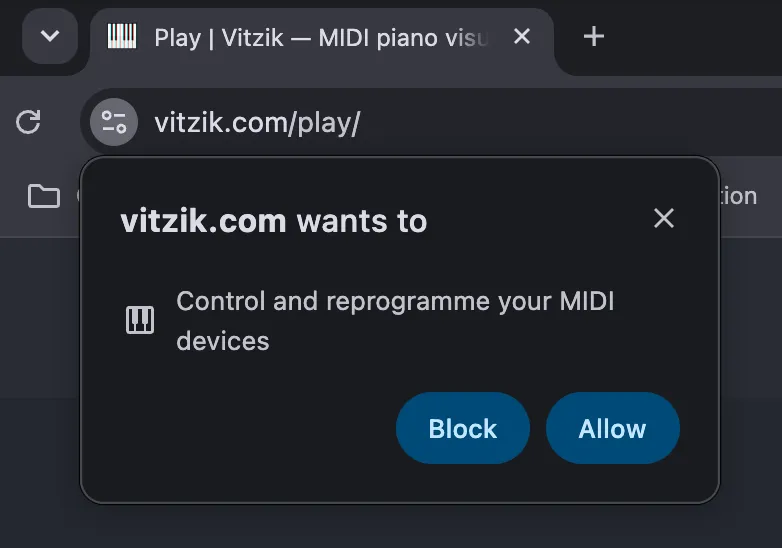
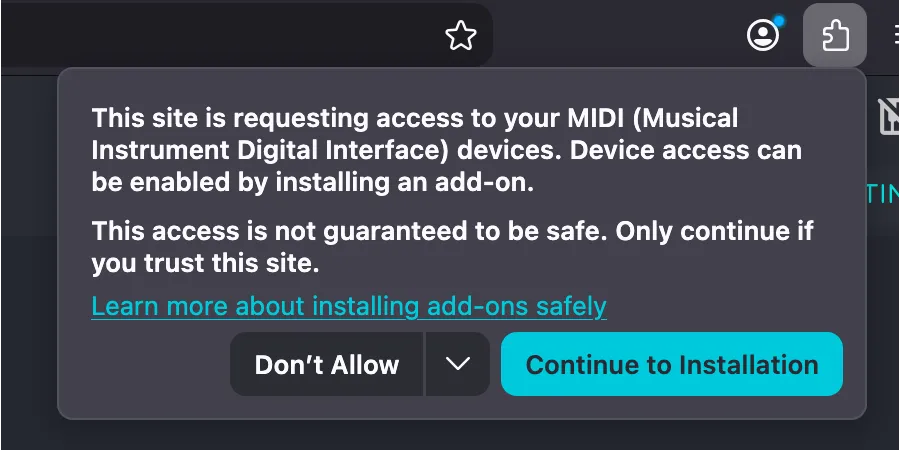
Both are worded like you’re about to install the biggest Trojan Horse on your computer but that’s only because the same API that reads your keys can also send data back to the instrument. For example to play some notes. Vitzik only listens so it’s safe.
Until you accept it, the piano won’t show. Firefox also wants the instrument connected before it starts: plug the piano in first, then open the browser.
If you click Block, the browser remembers and stops asking. Nothing will be detected afterwards and there is no error to tell you why. It is reversible. On Chrome for example a crossed-out piano appears at the right of the address bar. Click it, choose to always allow the site, then reload:
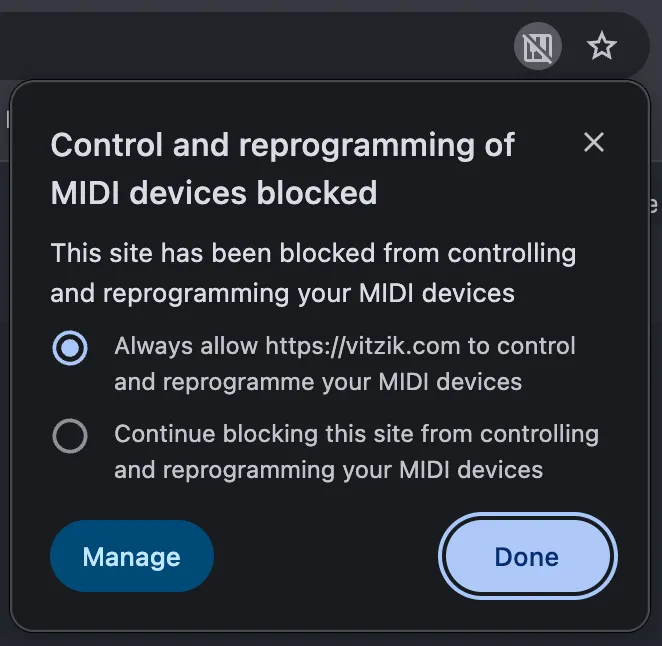
Once a device is allowed on Vitzik, the input control will show it. Choose yours and press a key to verify it works.

You’re all set!
When it doesn’t work
Here is what you can do in Vitzik:
Check the piano indicator. It sits at the right of the top bar: a line through it means no input:

Works in another app but not the browser. On Windows, some MIDI drivers hand the device to exactly one application at a time. Close the music application or software you forgot was open.
It’s detected but nothing happens when you play. Check you selected the right instrument in the dropdown.
Try it now